
In this tutorial we will show you how to change the top category and sub category icons of your website. Selecting static images over randomly selected images will make browsing a faster experience for users and will make your website look more unique with images chosen by you.
Subcategory Instructions:
1. Log in as a Admin.
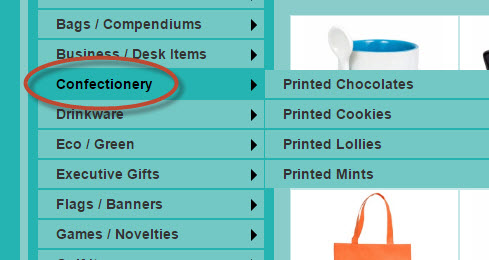
2. Click on the Main Category you want to edit.
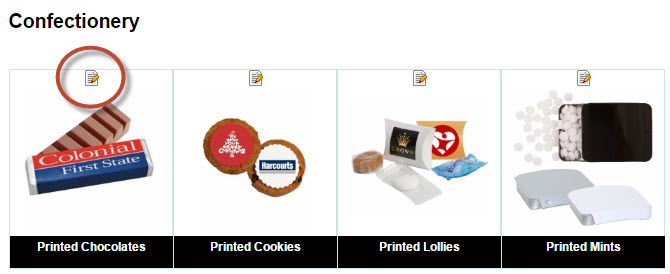
3. Click the Edit Icon above the Sub Category Image you want to change.
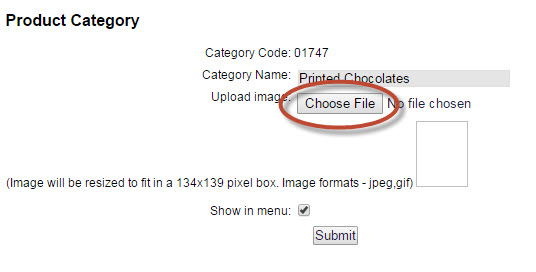
4. Select Choose File and select your .jpg image and click Submit to save.
Top Category Instructions:
1. Log in as a Admin.
2. Click on All Categories/Products.
3. Click the Edit Icon above the Top Category Image you want to change.
4. Select Choose File and select your .jpg or .png image and click Submit to save.
Image Tips
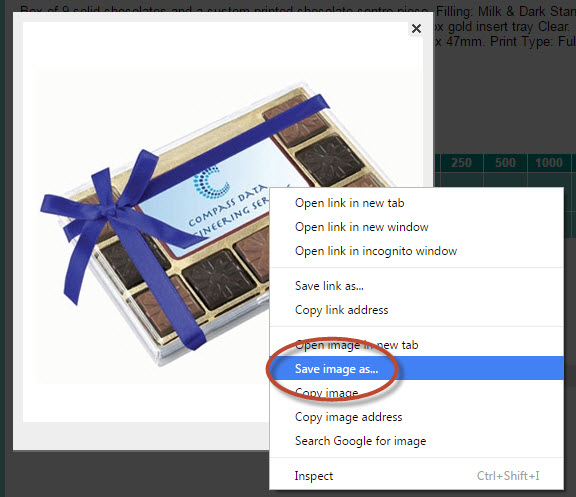
1. Images must be a perfect square when you upload them. A helpful way to collect images is if you save them from your website and use those as they are resized to 400 x 400 pixels already - a perfect square.
Simply find the image you want to use, Right click and save the image to your desktop to use later.
Comments
0 comments
Article is closed for comments.